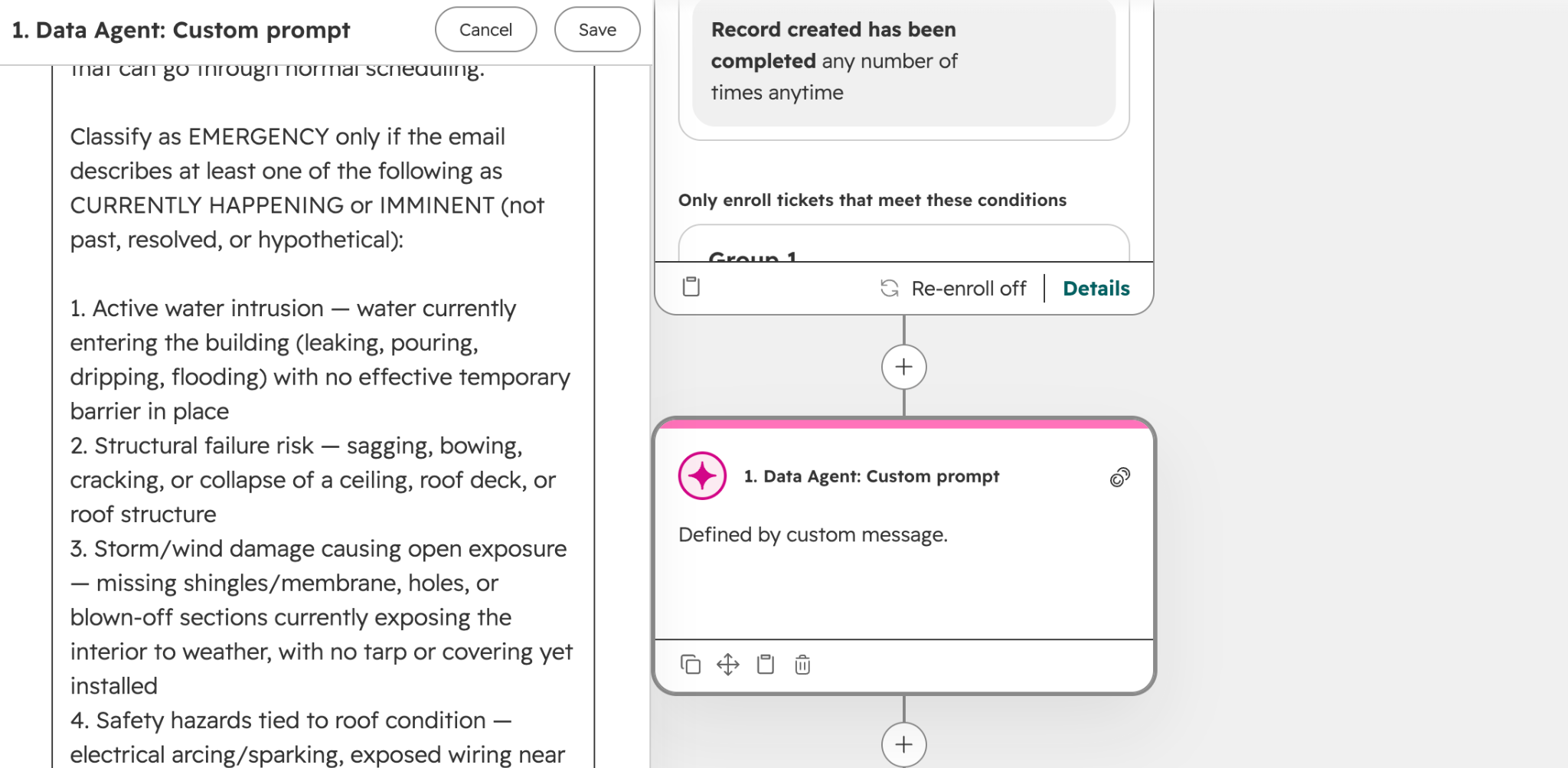
HubSpot’s Data Agent can set ticket priority based on what the customer actually wrote, using a single Custom prompt action. All it takes is the right trigger, a well-structured prompt and a separate action to stamp the result.
A customer emails your service inbox: a hydraulic pump on one of your machines failed overnight, and their line is down. Two tickets later, another customer asks when their next scheduled maintenance visit is. Someone on your team has to read both, judge which one is on fire, and set the ticket priority by hand. Now multiply that by a few hundred tickets a month.
This is one of the most common bottlenecks we see in manufacturing service teams. And it’s not because anyone is doing a bad job. There’s only so much automation and structured data can do with something as varied as an email or a support note.
That's the gap HubSpot's Data Agent fills. It's the bridge between unstructured context (emails, notes, form descriptions) and the structured CRM data your workflows already depend on, and it’s one of the most practical ways to start building HubSpot AI workflows.
In this post, I'll walk through one specific, repeatable setup: using the Data Agent to read an OEM repair request and return a clean ticket priority. This is a common use-case that we see, but the underlying principles can apply to a ton of other situations.
What Is HubSpot's Data Agent, and What Does It Do in a Workflow?
HubSpot’s Data Agent is a built-in AI agent that reads unstructured CRM content, like emails, notes and form descriptions, and returns a structured output a workflow can use.
The version we're covering here is the Data Agent: Custom prompt action, found under the AI section when you add a workflow action.
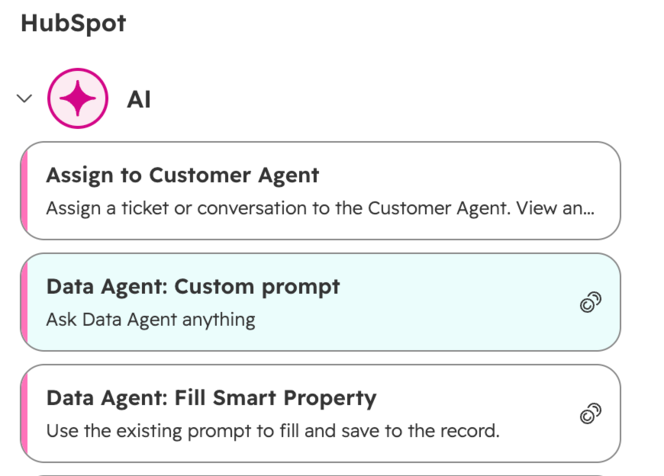
The simplest way to think about it: the Data Agent custom prompt turns unstructured data into usable data for the rest of the workflow. It reads a repair request and decides "Urgent," or applies attribution based on factors mentioned in a conversation.
Data Agent vs. A Standard Workflow Action |
||
|---|---|---|
|
Standard workflow action |
Data Agent: Custom prompt |
|
|
Reads |
Structured properties (dropdowns, numbers, dates) |
Unstructured text you add to the prompt (descriptions, emails, notes) |
|
Decides by |
Rules you define (if X = Y) |
AI interpretation, guided by your prompt |
|
Returns |
An action taken |
An output (text, number, enumeration and more) |
|
Updates the record? |
Yes |
Technically possible, but not recommended. Best practice is to stamp the output with a separate action |
What To Know Before You Start
Before you build anything, check these five limits, which shape how the Data Agent behaves in your portal.
- Subscription: Available on Professional and Enterprise tiers of Marketing, Sales, Service, Data and Revenue Hub, plus Smart CRM.
- HubSpot Credits: The action uses credits, so set usage limits on the Data Agent to avoid overage charges.
- Context is only what you give it: The agent doesn't see the record's other properties, timeline, or emails unless you add them to the prompt.
- Prompt length: Prompts are capped at 3,000 characters.
- No internet: The model behind Custom prompt isn't connected to the web.
How to Set Up the Data Agent in a HubSpot Workflow (OEM Ticket Example)
The scenario: An OEM equipment manufacturer's service team receives repair requests by email and web form. Priority gets set inconsistently, so urgent line-down issues sit in the queue next to routine questions.
The goal: The Data Agent reads each incoming request and returns one of HubSpot's ticket priority values: Low, Medium, High or Urgent.
Note: This example covers one specific implementation. To understand why each piece is configured the way it is, jump to 4 Rules for Reliable Data Agent Outputs.
Step 1: Build the workflow trigger
Create a ticket-based workflow that enrolls tickets when they're created in your service pipeline (or from a specific source, like your repair request form).
Before you go further, answer one question: which property holds the customer's actual message? It might be the ticket description, a form field or the latest email. If you point the agent at an empty field, it has nothing to read.
Step 2: Add the Data Agent action and write the prompt
Click +, expand AI and select Data Agent: Custom prompt. In the Message section, write your prompt and use the data panel to insert the properties you want the agent to read.
Here's the full example prompt, built on the three-part format we'll cover in the next section:
TASK: Determine the priority of this OEM repair request.
CONTEXT: Base your decision only on the information below.
- Customer message: [Ticket description]
- Equipment type: [Equipment type]
- Customer tier: [Customer tier]
- Warranty status: [Warranty status]
Use these definitions:
- Urgent: production is stopped, or there is a safety risk.
- High: equipment is degraded and downtime is likely soon.
- Medium: the issue affects a non-critical function.
- Low: a general question, scheduled maintenance or a documentation request.
OUTPUT: Return only one of these exact values: Low, Medium, High, Urgent.
Do not return any other words or explanation.
The priority definitions are the most important part. Without them, the agent is guessing what "High" means to your team.
Step 3: Configure Action outputs to match
Expand Action outputs and click + Add output. Choose Enumeration as the output type, then add each option with + Add value: Low, Medium, High, Urgent.
|
Heads up: If the options in your prompt and your Action outputs don't match exactly, expect mapping failures. |
Step 4: Stamp the output with a separate Edit record action
This is the step people miss: the Data Agent does not update the ticket. It only returns a response.
Add a CRM > Edit record action. Set Property to edit to Ticket priority. In the value field, open the data panel, go to Action data, select Data Agent: Custom prompt, then choose Response.
This separation is actually a feature. Between the agent and the stamp, you can add an if/then branch that checks for a valid value, alert a service manager on every “Urgent” or route unexpected values to a human review step.
Step 5: Test before turning it on
Open the action and click Test action in the bottom left. Pick a record and review the response. Test with real examples, like:
- A line-down email (should return Urgent)
- A replacement parts question (should return Low or Medium)
- A vague one-liner like "machine making a weird noise" (the edge case that tells you if your definitions hold up)
Confirm every output is one of your four values and that the property updates correctly.
Common Data Agent Mistakes (And How To Avoid Them)
Most Data Agent problems come from a handful of setup mistakes, and every one of them is easy to fix once you know what to look for.
Data Agent Mistakes & Fixes |
||
|---|---|---|
|
Mistake |
What happens |
The fix |
|
Scoping too broadly |
Inconsistent, hard-to-use outputs |
One decision per action |
|
Vague prompt, no definitions |
The agent guesses what "High" means |
Define every output option |
|
Options in the prompt but not in Action outputs (or vice versa) |
Values that won't map to your property |
Match them exactly in both places |
|
Expecting the agent to update the record |
Nothing changes on the ticket |
Add an Edit record action |
|
Pointing at the wrong or an empty field |
Garbage in, garbage out |
Confirm where the message actually lives |
|
Ignoring credits |
Null outputs when credits run out |
Monitor HubSpot Credits on high-volume workflows |
4 Rules for Reliable Data Agent Outputs
Reliable Data Agent outputs come down to four rules. They’re why the walkthrough above is set up the way it is. If you’re curious whether or not your CRM data is ready to comply with these rules, then try out Evenbound’s CRM Readiness Scorecard.
1. Give each Data Agent one workflow action's worth of work
Before you write a prompt, ask: "What would this be if it were one normal workflow action?" Set one property, pick one category, flag one condition. A prompt like "review this ticket, update priority, assign the right tech and draft a reply" produces inconsistent outputs you can't map to anything. If you need several decisions, use several Data Agent actions, each with one job.
2. Structure every prompt as "do this, based on this, output this"
Every good Data Agent prompt has three parts: the task (what to decide), the context (what to base it on) and the output (exactly what it may return). Skip the context and the agent guesses. Skip the output rules and you get free-form answers that won't fit a dropdown. Here's a template you can copy:
TASK: Determine [the one decision].
CONTEXT: Base your decision only on: [property tokens]. Definitions: [option = criteria].
OUTPUT: Return only one of these exact values: [option 1], [option 2], [option 3].
3. Restrict outputs to exact options, and define them in two places
If the destination is a dropdown property, the agent should only be able to return those dropdown values. List them in the prompt and set them as an Enumeration in Action outputs, with labels that match your target property exactly. The prompt tells the agent what it's allowed to choose; Action outputs enforce what the workflow receives.
4. Let the agent decide, then let another action stamp it
The Data Agent returns a response; an Edit record action writes it to the ticket. That gap is where you add guardrails: a branch that checks for a valid value, an alert on "Urgent" or a human review step. Pair that with real-world testing, and you'll trust the outputs before they ever touch live tickets.
Why This Matters for Manufacturers and Industrial Teams
At Evenbound, we work with a lot of manufacturers and industrial companies. The pattern we see over and over: the most valuable information in the CRM is buried in free text. It lives in repair emails, RFQ notes and service call summaries, where workflows can't touch it.
That's why we’ve been encouraging more and more of our clients to set up Data Agent. It's not as flashy as some other Agents out there, but a good implementation always provides real, measurable time saved.
Data Agent Use Cases for Industrial Teams |
||
|---|---|---|
|
Use case |
What the agent reads |
What it returns |
|
Classify inbound RFQs |
RFQ description |
Product line (enumeration) |
|
Flag warranty claims |
Repair request text + warranty status |
Warranty / Non-warranty |
|
Spot competitor equipment |
Service notes |
Competitor name, or none |
|
Sort inquiry source |
Form submission + company details |
Distributor / End user |
|
Detect expansion signals |
Support conversations |
Yes / No (e.g. mentions a new facility or added line) |